
Support teams often receive tickets labeled “urgent,” “critical,” or “ASAP,” but those words do not always reflect the actual business impact. One request may involve a minor formatting issue, while another may describe an outage that is actively stopping orders, revenue, or customer access.
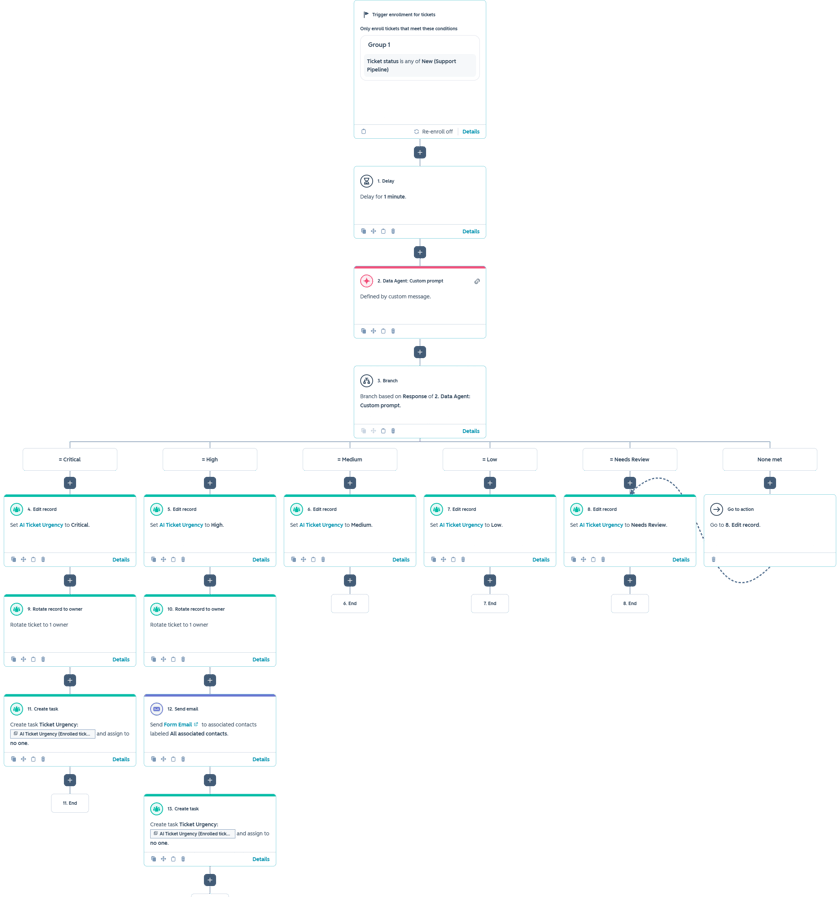
This HubSpot workflow uses a Data Agent custom prompt to evaluate the full ticket context and classify urgency as Critical, High, Medium, Low, or Needs Review. Instead of relying on emotional language, the workflow looks for evidence such as blocked work, affected users, deadlines, workarounds, revenue risk, and active service interruption.
For example, a customer saying “this is urgent” without any explanation may be routed to Needs Review. A ticket showing that a renewal is due tomorrow and service access may be interrupted would be High. A production integration that has already stopped processing customer orders would be Critical.
The Workflow
1. Enroll new support tickets
The workflow is ticket-based and enrolls records with a New status in the Support Pipeline. This makes urgency classification part of the initial triage process, before the ticket is assigned or added to a support queue.
A one-minute delay follows the enrollment trigger. That pause gives HubSpot time to finish updating the ticket name, description, associated records, and business-impact property before the Data Agent evaluates the request. This is especially useful when the ticket is created through a form or another automation.
2. Evaluate the ticket with a Data Agent custom prompt
The Data Agent receives the ticket subject, description, and a dedicated business-impact response. The prompt defines five urgency levels and provides both positive signals and boundary rules for each one.
The most important distinction is between Critical and High. Critical is reserved for severe interruption or active damage that is already happening. High is used when the issue is serious and time-sensitive, but the customer still has some access, a workaround, or limited ability to continue operating.
You are an AI support ticket urgency classification assistant.
Your task is to review a newly created support ticket and determine how urgently the request should be handled.
Evaluate the complete context of the ticket, including the current business impact, affected users, blocked work, deadlines, risk of service interruption, and whether the issue is already causing active damage.
Do not classify urgency based only on words such as “urgent,” “important,” “ASAP,” or “critical.” Look for specific evidence of impact and time sensitivity.
TICKET INFORMATION
Ticket name:
Ticket description:
Current business impact:
ALLOWED URGENCY LEVELS
Critical
High
Medium
Low
Needs Review
CRITICAL
Classify the ticket as Critical when the issue is currently causing a severe business interruption that requires immediate attention.
Critical signals include:
- a business-critical system or service is already unavailable;
- multiple users or an entire team cannot complete essential work;
- customers are currently unable to access or use an important service;
- active revenue-generating activity has stopped;
- leads, orders, payments, or important customer data are currently being lost;
- there is an active security, privacy, or significant data-loss incident;
- a production website, application, integration, or essential automation is completely unavailable;
- an account has already been suspended and important daily work cannot continue;
- delaying the response is likely to cause immediate and significant additional damage.
Use Critical only when the severe impact is already happening.
Examples:
- The customer’s account is suspended and the entire team cannot work.
- A production integration has stopped and customer orders are being lost.
- A public website is unavailable during an active campaign.
- Critical customer or business data is currently being deleted or corrupted.
HIGH
Classify the ticket as High when there is a serious and time-sensitive issue, but the business is not yet experiencing a complete critical interruption.
High signals include:
- there is a specific deadline within approximately the next 24 to 48 hours;
- a service interruption is likely unless the issue is resolved soon;
- an important launch, renewal, campaign, meeting, or business event is imminent;
- a major process is failing, but a temporary workaround is still available;
- several users are significantly affected;
- the issue is causing substantial delays, manual work, customer impact, or revenue risk;
- access, billing, or renewal problems could soon interrupt an important service;
- the issue is worsening and could become Critical if not addressed quickly.
Examples:
- A renewal payment is due tomorrow, and the account may be suspended.
- New leads are not being assigned, but the team is processing them manually.
- An integration is unreliable ahead of an important launch in two days.
- Several users cannot complete an important process, but other work can continue.
MEDIUM
Classify the ticket as Medium when the issue has a meaningful business impact and should be addressed in a normal support timeframe, but there is no immediate risk of severe interruption.
Medium signals include:
- a process is inefficient, confusing, or partially working;
- one or a small number of users are affected;
- there is a workaround available;
- the issue is causing inconvenience or additional manual work;
- the customer has a deadline more than a few days away;
- the request concerns an important configuration or process improvement;
- the customer needs assistance before an upcoming event, but there is adequate time to respond;
- the issue affects productivity but does not stop essential operations.
Examples:
- The sales team needs help improving its pipeline before training next month.
- A report contains incorrect information, but operational work can continue.
- A website page has a display problem that does not prevent submissions.
- One user cannot access a feature, but other team members can continue working.
LOW
Classify the ticket as Low when the request is informational, cosmetic, optional, or not time-sensitive.
Low signals include:
- a general question or request for guidance;
- a minor cosmetic or formatting issue;
- a nonessential content update;
- an enhancement or feature request;
- a request that can be handled whenever convenient;
- no users or business processes are currently blocked;
- there is no deadline, immediate impact, or meaningful business risk;
- the customer is planning for a future project without a defined timeline.
Examples:
- The customer wants a minor text change on a webpage.
- The customer is asking how a feature works.
- The customer would like a new report later in the quarter.
- The customer is requesting an optional process improvement.
NEEDS REVIEW
Classify the ticket as Needs Review when the available information is insufficient, contradictory, or unreliable.
Use Needs Review when:
- the business-impact response is blank or contains almost no useful information;
- the ticket says the issue is urgent but does not describe any impact, deadline, or affected process;
- different parts of the ticket contain conflicting urgency information;
- the request appears to be spam or test data;
- the content is unrelated to a valid support request;
- there is not enough information to distinguish confidently between Critical, High, Medium, and Low.
DECISION RULES
1. Base the classification primarily on current business impact and time sensitivity.
2. A customer using words such as “urgent,” “critical,” “ASAP,” or “immediately” does not automatically make the ticket Critical or High.
3. Prioritize specific facts over emotional or general language.
Specific facts include:
- a named deadline;
- the number of affected users;
- a blocked business process;
- an active outage;
- lost revenue or customer impact;
- the availability of a workaround;
- an imminent launch, renewal, or event.
4. Use Critical only when severe business interruption or active damage is already occurring.
5. Use High when there is serious impact or an imminent deadline, but the customer still has partial access, a workaround, or some ability to continue operating.
6. If access may be interrupted tomorrow, classify the ticket as High.
7. If access is already interrupted and essential work cannot continue, classify the ticket as Critical.
8. If a major process is broken but the team is using a temporary manual workaround, classify the ticket as High or Medium depending on the scale and deadline.
9. If the issue affects productivity but does not block essential work, classify the ticket as Medium.
10. If the request is informational, cosmetic, optional, or has no meaningful deadline, classify the ticket as Low.
11. When a deadline is mentioned, consider both how soon it is and what will happen if the deadline is missed.
12. A close deadline for a minor request does not automatically make the ticket High.
13. A serious business impact without a near-term deadline should normally be Medium unless the impact is already causing major operational disruption.
14. When the ticket description and business-impact response conflict, prioritize the more specific and credible information.
15. When there is not enough reliable information to classify the ticket confidently, select Needs Review.
16. Select exactly one urgency level.
OUTPUT REQUIREMENTS
Return exactly one of the following values:
Critical
High
Medium
Low
Needs Review
Return only the exact urgency level.
Do not include:
- an explanation;
- a reason;
- punctuation;
- quotation marks;
- headings;
- markdown;
- any additional text.
3. Store the urgency classification
After the Data Agent responds, the workflow writes the result to the AI Ticket Urgency property. Saving the value before branching creates a visible audit trail and makes the classification available for lists, reporting, SLA logic, and later workflows.
The workflow then branches on the exact values Critical, High, Medium, Low, and Needs Review. The unmatched path is sent to the same Needs Review action, which provides a safe fallback if the AI response does not match the configured values.
4. Trigger the appropriate response
Critical and High tickets continue to additional actions. In the example, both are rotated to an owner. Critical tickets also create an urgent review task, while High tickets send a form email to associated contacts and create a follow-up task.
Medium, Low, and Needs Review tickets are classified and then end, but those branches can be expanded with different SLAs, queues, task deadlines, or notifications. For example, Medium could create a task due within one business day, while Low could remain in a standard support queue.
The workflow can also be combined with AI ticket routing. One AI step determines the responsible team, while another determines urgency. HubSpot can then assign the ticket based on both dimensions—for example, Critical Technical Team or High Billing and Administration.
Use Cases
1. SLA-based support operations
Automatically apply different response expectations based on business impact rather than relying on the customer’s choice of a generic priority field.
2. Escalation and on-call routing
Critical tickets can notify on-call staff immediately, while High tickets can receive accelerated ownership and task creation without triggering the same emergency process.
3. Cleaner support reporting
Track urgency patterns by customer, issue type, team, product, or month. The results can reveal recurring outages, customers with high support demand, or processes that frequently create time-sensitive tickets.
Wrapping Up
This workflow turns ticket context into a structured urgency decision. The Data Agent evaluates impact and time sensitivity, HubSpot records the result, and the workflow escalates the requests that need faster attention.
No Bounds Digital helps businesses design AI-powered lead routing, create reliable custom prompts, and build advanced HubSpot workflows that connect every inquiry with the right team. Contact No Bounds Digital to discuss AI services or custom development in HubSpot.