
Your deal report shows one total. Add contact information, and the number changes. Nobody closed another deal while you were choosing the chart colors.
Before you rebuild the dashboard, check what the report is counting. A deal, a contact, and a deal-contact relationship are three different things. They can all appear in the same analysis, but they should not quietly become interchangeable.
Start with a small set of records you can reconcile by hand. Once you can explain those rows, you have a much better chance of trusting the full report.
Write down what one result represents
Begin with a plain sentence: this report counts each closed-won deal once. Or this report counts contacts associated with open deals. Those questions need different measures, even when they use the same objects.
Then define the scope. Which pipeline? Which stage? Which date? Which currency? A report about deals closed in October answers a different question from one about contacts created in October who eventually became customers.
- Unit: The record or relationship being counted.
- Measure: The count, amount, or other value being calculated.
- Population: The records that qualify for inclusion.
- Breakdown: The category used to group the results.
Put those definitions beside the report brief. If two people disagree about the sentence, do not settle the argument by selecting a bar chart.
Build a baseline with the fewest sources
For a deal total, begin with the deal information you actually need. Match the baseline to the agreed pipeline, stage, date, and currency. Save the record IDs that explain the result.
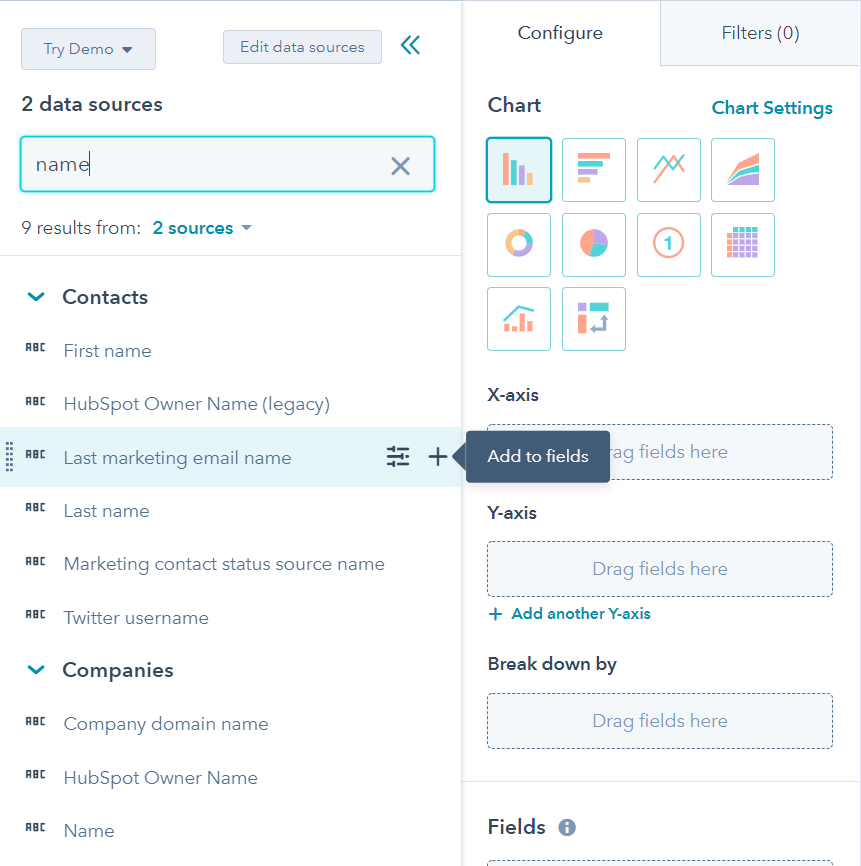
HubSpot's custom report builder guidance, checked on October 29, 2026, explains that the primary data source affects which records are returned. Its View data join info panel shows how selected sources connect and which records can be included.
Add a second source only when it answers a specific part of the question. Compare the result with your baseline immediately. If you add contacts, companies, and activities together, you create several possible explanations for the first discrepancy.
Keep a short change log while building: source added, field added, filter changed, result observed. This is temporary working material. It saves you from trying to remember which click made the number interesting.
Follow a tiny example through the report
Use a hypothetical example before testing real business totals. Deal A is worth USD 10,000 and has two associated contacts. Deal B is worth USD 5,000 and has one. The business has two deals worth USD 15,000.
A detail table showing every deal-contact pair has three rows. That is reasonable for a relationship-level view. If you manually add the repeated deal amounts in those rows, you get USD 25,000. The extra USD 10,000 is a repeated value, not new business.
This is a diagnostic example, not a claim that every HubSpot chart sums joined data that way. Inspect the actual fields and aggregation in your report. A detail view and a headline measure may operate differently.
Check unique deal IDs separately from displayed rows. Also check the amount separately from the count. A correct count of two does not, by itself, prove that the monetary total is correct.
Never remove repeated currency amounts simply because the numbers match. Two different deals can both be worth USD 10,000. The record's identity tells you whether it is the same deal.
Look for records that disappeared
Inflated totals get attention. Missing records can be harder to spot because the remaining result still looks tidy.
Add a test deal with no associated contact to your validation set. Decide whether the business question says it belongs in the report. Then check whether it appears after adding the contact source and filters.
HubSpot documents that associated records and filters can change counting behavior. A primary source change can also change whether unassociated records appear. Review those relationships before treating a smaller total as an improvement.
Treat blank source, owner, or category values deliberately. Decide whether they remain visible as an unknown group or are excluded for a stated reason. Keep a separate count of excluded records so the reader knows what the chart leaves out.
Do not fill in a missing association just to make the report agree with an expected number. Confirm the real relationship first. A tidy chart is a poor reason to invent CRM history.
Agree on the meaning of each breakdown
A deal connected to several contacts may have contacts from different marketing sources. Before grouping the deal's value by contact source, decide what the resulting categories are supposed to mean.
A report of deals associated with contacts from each source can legitimately place the same deal in more than one group. Those groups are overlapping sets. Adding their values together would not describe unique deal revenue.
If you need mutually exclusive categories, define one business-approved classification for each deal. If you need attribution, agree on an attribution method and use an appropriate reporting approach. An association alone does not establish which interaction deserves revenue credit.
State the rule in the report description. Readers should not have to guess whether a source means first contact, selected contact, or any associated contact.
Use native tools before designing a reporting project
HubSpot's report creation guide covers source selection, fields, filters, and association-label filtering. It also identifies starting from a dataset as a Data Hub Enterprise option. Check availability in your account before planning around that route.
Start with the report builder and a small validation table. Consider a reusable dataset when several reports need the same prepared data, not simply because the first chart is confusing. Keep separate reports when they answer different questions more clearly.
In our published Payroll Vault dashboard example, reports were designed around decisions and built directly in HubSpot. The useful lesson here is the starting point: decide what someone needs to know before adding more machinery.
Validate the awkward records before sharing
Choose a small sample with ordinary records and exceptions. Include one deal with several contacts, one without a contact, two deals with the same amount, and a record with a blank breakdown value. These are test cases, not a substitute for reconciling the complete report.
Confirm the expected inclusion, record count, grouping, and amount for each. Then compare the full result with the baseline under identical filters. If they differ, identify the specific added or missing records.
Save the definitions and test cases with the report. Repeat the check after changing sources, associations, or filters. The goal is a number the team can explain when someone asks where it came from.
Need help tracing a HubSpot report back to its records? Talk with No Bounds Digital about the question, the data relationships, and the native reporting options that fit.