
Many business processes depend on the day of the week. A sales team may handle Friday submissions differently from Monday submissions, customer support may use weekend coverage rules, and operations teams may need to delay certain actions until the next business day.
This HubSpot workflow uses a custom-coded action to identify the current weekday in the HubSpot account timezone and write it to a dropdown contact property. The action also returns the calculated value as a workflow output so later steps can branch on Monday, Tuesday, Wednesday, or any other day.
A practical example would be a contact who enters a workflow late on Friday. Once the current day is known, HubSpot can route the contact to a weekend queue, delay the follow-up until Monday, or assign the record to a team that covers that day. The same logic can also support reporting, scheduling, and service-level workflows.
The Workflow
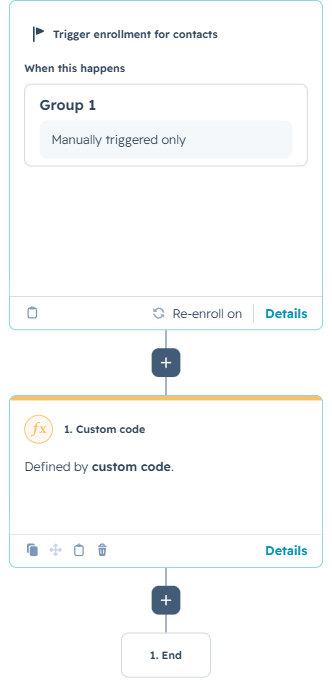
1. Enroll the contact
The workflow shown in the example is manually triggered. This makes it easy to test the custom code on a selected contact and confirm that the correct weekday is written to the CRM.
In production, the action could run after a form submission, lifecycle-stage change, ticket creation, deal update, or another workflow event. Re-enrollment is enabled in the example, allowing the same contact to pass through the action again when a fresh weekday value is needed.
2. Configure the destination dropdown property
The code begins with a configuration section that contains the internal name of the HubSpot dropdown property: todays_day. If a portal uses a different property name, the value can be changed in one place without rewriting the rest of the action.
The destination property should contain seven dropdown options matching the values returned by the code: Monday, Tuesday, Wednesday, Thursday, Friday, Saturday, and Sunday. Keeping the workflow output and CRM property values aligned prevents update errors.
3. Read the HubSpot account timezone
The custom-coded action reads the private app token from the workflow secret named CUSTOM_CODED and receives the enrolled contact ID from the workflow event.
It then calls HubSpot’s Account Information API to retrieve the timezone configured in the portal. This is important because the code runs on HubSpot server infrastructure. The server’s local time may not match the timezone used by the business, especially close to midnight.
4. Calculate and validate the current weekday
The workflow uses Intl.DateTimeFormat with the account timezone and the weekday: "long" option. This returns the full English weekday name rather than a number or abbreviated label.
The result is checked against an approved list of seven day names before it is written to HubSpot. That validation step prevents unexpected text from being stored in the dropdown property and ensures that the returned value matches one of the configured options.
How the Custom Logic Works
The excerpt below shows the core timezone lookup, weekday calculation, validation, CRM update, and workflow output. Request validation, detailed logging, and supporting error handling are summarized to keep the article readable.
5. Update the contact and use the output
The action updates the enrolled contact with one PATCH request. Because the destination property name is configurable, the same code can be reused across portals with different naming conventions.
The action also returns todays_day as a workflow output. That output can be used immediately in a branch, while the CRM property remains available for lists, reporting, and later automation.
The code can be customized to update a company, deal, ticket, or custom object instead of a contact. It can also return weekday groups such as Weekday or Weekend, business-day numbers, or localized day names.
Use Cases
1. Weekend and business-hours routing
Route Friday evening or weekend submissions to an on-call team, a special queue, or a delayed follow-up path. Monday through Friday records can continue through the standard process.
2. Day-specific sales and service automation
Use weekday branches to assign different owners, create tasks with appropriate due dates, or send messages that reflect the expected response window.
3. Operational reporting
Store the weekday on records to compare form submissions, support requests, conversions, or process volume by day. This can reveal staffing patterns and recurring demand across the week.
Wrapping Up
This workflow gives HubSpot a reliable, timezone-aware way to determine the current weekday. The custom code reads the account timezone, validates the result, writes it to the CRM, and makes the value available to the rest of the workflow.
No Bounds Digital helps organizations design AI-powered HubSpot workflows, custom-coded actions, custom object solutions, and CRM automation tailored to real operating processes. Contact No Bounds Digital to explore how custom development and AI services can turn your HubSpot data into faster, more intelligent action.