
Duplicate contacts make almost every CRM process harder. The same person may receive multiple emails, appear more than once in reports, be assigned to different owners, or carry incomplete information across several records. Email-based deduplication helps, but it does not catch contacts created with different email addresses that share the same phone number.
This HubSpot workflow uses two custom-coded actions. The first action finds and flags contacts that share a normalized US phone number. The second action can merge the confirmed duplicate group into one recommended primary contact after performing a separate set of safety checks.
For example, one contact may contain (202) 555-0147 while another stores +1 202 555 0147. Although the formatting is different, the workflow normalizes both values to the same canonical phone number, identifies the duplicate group, and recommends the oldest contact as the primary record.
The Workflow
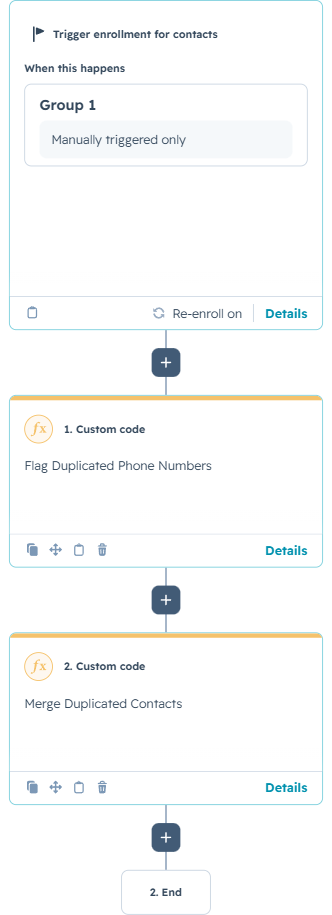
1. Enroll the contact
The example uses manual enrollment followed by two custom-coded actions: Flag Duplicated Phone Numbers and Merge Duplicated Contacts. Manual enrollment lets an administrator review a known group before enabling broader automation.
In production, the detection action could run when Phone or Mobile Phone becomes known or changes. Automatic merging should remain a separate decision. Detection is reversible; merging is permanent.
2. Normalize and compare phone numbers
The detection action checks both the standard Phone and Mobile Phone properties. It removes extensions, spaces, punctuation, and international 00 prefixes, then converts valid US numbers into one canonical format. A ten-digit number and an eleven-digit number beginning with country code 1 can therefore be compared consistently.
The code searches HubSpot for each normalized phone number, but it does not trust the general search result by itself. Because a broad CRM search can also match names, email addresses, and company fields, every returned contact is revalidated against its actual phone properties before it is added to the duplicate group.
3. Flag the full duplicate group
When matches are found, the action updates every contact in the group—not only the record that triggered the workflow. Each contact receives a duplicate Yes/No value, the number of other matching contacts, the recommended primary email, and a list of the other duplicate emails.
The oldest contact becomes the recommended primary. Another business could instead prefer the most complete record, a contact with an active deal, or a record owned by a specific team.
How Duplicate Detection Works
The final lines in the full detection action build the group, apply a safety limit, select the oldest contact, and update all members. The workflow also returns the duplicate status, duplicate count, recommended primary email, and duplicate email list for the enrolled contact.
4. Revalidate before merging
Important: Merging contacts is destructive and cannot be automatically rolled back. The merge action should remain disabled while the workflow is being tested.
The second custom-coded action includes a master switch named ENABLE_AUTOMATIC_MERGE. When it is set to false, the action stops before making any HubSpot API calls. This creates a deliberate separation between reviewing duplicate data and enabling permanent merges.
When enabled, the merge action rereads the contact and validates every stored detection result. It confirms that the record is still flagged, the duplicate count is valid, the primary email belongs to the group, every expected email still resolves to a unique contact, and the primary is still the oldest contact.
Most importantly, it rechecks the phone numbers immediately before the merge. Each secondary must still share at least one normalized US phone number with the primary. If the data changed after detection, the merge stops and instructs the administrator to rerun detection.
How the Merge Safeguards Work
5. Merge secondaries and clean the survivor
Only after all validation succeeds does the action merge each secondary contact into the primary. If the enrolled contact is one of the secondary records, it is merged last so the workflow execution context survives for as long as possible.
After the merge, the workflow clears the duplicate properties on the surviving primary contact and returns the merge status, number of merged contacts, and primary email.
Use Cases
1. Lead and contact database cleanup
Identify contacts created through multiple forms, imports, events, or integrations when the same person used different email addresses but retained the same phone number.
2. Sales ownership and reporting accuracy
Reduce duplicate assignments, inflated lead counts, fragmented activity histories, and conflicting lifecycle stages by consolidating related records into one primary contact.
3. Controlled data-governance workflows
Use the first action only for detection and review, then place the merge behind approval, a list, or a manually enabled safety switch. This supports automation without treating every possible match as safe to merge.
Wrapping Up
This workflow treats deduplication as two separate problems: identifying likely duplicates and deciding whether they are safe to merge. Phone normalization finds records that simple formatting differences would otherwise hide, while the second action revalidates the group before making any permanent change.
No Bounds Digital helps organizations design AI-powered HubSpot workflows, custom-coded actions, custom object solutions, and CRM automation tailored to real operating processes. Contact No Bounds Digital to explore how custom development and AI services can turn your HubSpot data into faster, more intelligent action