
sounds like a simple workflow requirement, set today’s date, but dates become more complicated when account timezones, server time, date-picker formats, and display formats all need to agree. A workflow that uses the wrong timezone can write yesterday’s date or tomorrow’s date, especially when it runs near midnight.
This HubSpot workflow uses a custom-coded action to calculate the current date in the HubSpot account timezone, save it to a Date picker property, and also save a visibly formatted version to a single-line text property. The action then returns both values as workflow outputs for testing or later automation steps.
A practical example would be a contact-processing workflow that needs to stamp the date a review was completed, a status was updated, a renewal process started, or a manual quality check occurred. Instead of relying on the server’s date, the code uses the timezone configured in the HubSpot account.
The Workflow
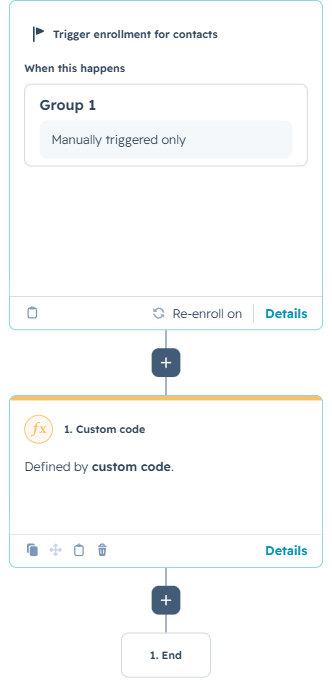
1. Enroll the contact
The workflow shown in the example is manually triggered. This is useful during testing because an administrator can select a contact, run the workflow, and confirm that both date properties are updated correctly.
In production, the same action could be placed after a form submission, lifecycle-stage change, deal event, support milestone, or another business trigger. Re-enrollment is enabled in the example, which allows the same contact to run through the workflow again when a fresh date stamp is needed.
2. Configure the destination properties
The code starts with a configuration section that controls where and how the values are stored. One internal property name points to a HubSpot Date picker field, while a second points to a single-line text field used for the formatted date.
The text format can be changed without rewriting the main workflow logic. The supported examples include MM/DD/YYYY, DD.MM.YYYY., and YYYY-MM-DD. This setting changes only the text property. The Date picker value still follows the format expected by HubSpot.
3. Retrieve the HubSpot account timezone
The custom code reads the private app token from the workflow secret named CUSTOM_CODED. It also receives the enrolled contact ID from the workflow event object.
Next, the action calls HubSpot’s Account Information API and retrieves the timezone configured in the portal. This is an important step because custom code runs on HubSpot’s server infrastructure. The server timezone should not be assumed to match the business timezone used by the account.
4. Calculate today in the correct timezone
The action uses Intl.DateTimeFormat with the account timezone and separates the result into year, month, and day. Working with individual date parts avoids accidental shifts caused by converting a complete timestamp between timezones.
Once the correct calendar date has been determined, the code creates two outputs. The Date picker value is represented as Unix milliseconds for midnight UTC on that calendar date. The formatted text value is created separately using the selected display format.
How the Custom Logic Works
The excerpt below shows the core timezone calculation, Date picker conversion, formatting, and contact update. The full action also includes request validation, configurable property names, detailed logging, and error handling.
5. Update the contact and return workflow outputs
The action sends one PATCH request to update both properties on the enrolled contact. Computed property names make the destination fields easy to change in the configuration block without editing the request logic.
The workflow also returns today_date_picker and today_formatted as explicit outputs. These can be inspected during testing or used by later actions. If the API request fails, the helper throws an error so HubSpot marks the action as failed instead of displaying a misleading successful execution.
The same code can be customized to update a company, deal, ticket, or custom object instead of a contact. It can also be expanded to calculate future dates, renewal dates, review deadlines, or date labels in additional formats.
Use Cases
1. Process and review date stamps
Save the date a contact was manually reviewed, qualified, approved, or moved into a new operational process. The text version can be useful in exports or customer-facing messages, while the Date picker supports filtering and reporting.
2. Renewal and follow-up automation
Use today’s date as the starting point for future workflow calculations. A later step could calculate a renewal reminder, follow-up window, onboarding checkpoint, or service review date.
3. Timezone-safe reporting
Organizations operating across regions can make sure date stamps reflect the HubSpot account’s business timezone rather than the server environment. This creates more consistent filters, lists, reports, and audit trails.
Wrapping Up
This workflow provides a reliable way to write today’s date into HubSpot without relying on server time. The custom code retrieves the account timezone, calculates the correct calendar date, updates both a Date picker and formatted text property, and returns reusable workflow outputs.
No Bounds Digital helps organizations design AI-powered HubSpot workflows, custom-coded actions, custom object solutions, and CRM automation tailored to real operating processes. Contact No Bounds Digital to explore how custom development and AI services can turn your HubSpot data into faster, more intelligent action.