
Many workflows need to know more than the date. The exact hour can determine whether a new lead should be assigned immediately, delayed until the next business day, routed to an on-call team, or included in a time-based report. However, using server time can create inaccurate results when the HubSpot account operates in a different timezone.
This workflow uses a custom-coded action to calculate the current hour in the HubSpot account timezone, format it in either 12-hour or 24-hour notation, and write the result to a contact property. The action also returns the formatted hour as a workflow output, making it available to later branches and actions.
For example, a contact entering a workflow at 7:47 PM could be stored as 7:00 PM when exact minutes are disabled, or 7:47 PM when exact minutes are enabled. HubSpot can then use that value to drive after-hours routing, task creation, or follow-up timing.
The Workflow
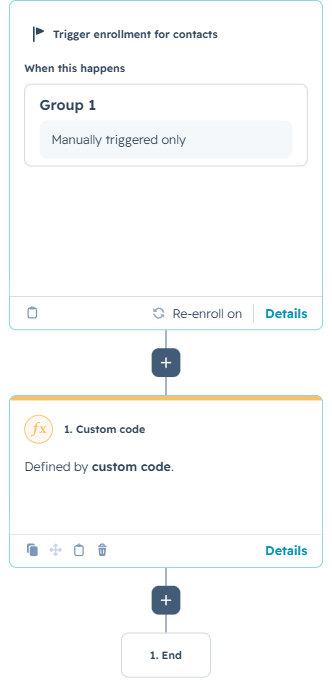
1. Enroll the contact
The workflow shown in the example is manually triggered and contains one custom-coded action. Manual enrollment is useful for testing because an administrator can choose a contact, run the workflow, and confirm that the current hour is written correctly.
In production, the same action could follow a form submission, lifecycle-stage change, new deal, ticket creation, or another operational event. Re-enrollment can be enabled when the hour should be recalculated each time the contact reaches a specific point in a process.
2. Configure the destination property and display format
The configuration section defines the internal name of the destination text property: hour_of_the_day. This can be changed without modifying the main request logic if the portal uses a different property name.
The code also supports two display formats. The 24_HOUR option returns values such as 09:30, while 12_HOUR returns values such as 9:30 AM. A separate SHOW_EXACT_MINUTES setting controls whether the actual minute is included or replaced with 00.
That distinction can be useful when the workflow needs only an hourly bucket rather than the exact time. For example, reporting may be easier with values such as 9:00 AM, 10:00 AM, and 11:00 AM.
3. Retrieve the HubSpot account timezone
The action reads the private app token from the workflow secret named CUSTOM_CODED and receives the enrolled contact ID from the workflow event.
It then calls HubSpot’s Account Information API to retrieve the timezone configured in the portal. This prevents the workflow from relying on the timezone of HubSpot’s server infrastructure, which may not match the business timezone. Without this step, a workflow running near midnight could store an hour that belongs to the wrong business day.
4. Calculate and format the current hour
The code uses Intl.DateTimeFormat with the account timezone to retrieve the current hour and minute. The h23 hour cycle ensures that midnight is returned as 00 rather than 24, which keeps the 24-hour value consistent.
The action then passes the result to a formatting function. That function converts the hour into the selected 12-hour or 24-hour display and adds the correct AM or PM label when needed.
How the Custom Logic Works
The excerpt below shows the core timezone lookup, hour calculation, formatting, contact update, and workflow output. The complete action also includes configuration validation, request error handling, and detailed logging.
5. Update the contact and reuse the output
The action updates the enrolled contact with one PATCH request. Because the destination property is configurable, the same logic can be reused in different portals without rewriting the entire action.
The returned hour_of_the_day output can be used by subsequent workflow branches. A business could branch on morning, afternoon, evening, or after-hours values, while the stored CRM property remains available for lists, reporting, and later automation.
The same approach can also be adapted for companies, deals, tickets, and custom objects. Additional logic could convert the exact hour into broader labels such as Business Hours, After Hours, Morning, Afternoon, or Evening.
Use Cases
1. Business-hours lead routing
Assign leads differently depending on when they enter the CRM. Business-hours submissions can go directly to the sales team, while evening or overnight submissions can be routed to a queue for next-day follow-up.
2. Support and on-call workflows
Use the current hour to identify tickets created outside standard service hours. HubSpot can notify an on-call owner, apply a different SLA, or delay noncritical actions until the support team is available.
3. Time-of-day reporting
Store the hour of submission, qualification, or escalation to compare activity across the day. This can reveal peak inquiry periods, staffing needs, and the times when conversions or support demand are highest.
Wrapping Up
This workflow gives HubSpot a reliable, timezone-aware way to understand the current hour. The custom code retrieves the account timezone, formats the time according to the selected configuration, updates the contact, and returns a reusable workflow output.
No Bounds Digital helps organizations design AI-powered HubSpot workflows, custom-coded actions, custom object solutions, and CRM automation tailored to real operating processes. Contact No Bounds Digital to explore how custom development and AI services can turn your HubSpot data into faster, more intelligent action