
An AI workflow labels an inquiry as a billing request. The record updates, the owner changes, and the support team finds out later that the customer was reporting a broken payment integration. The label looked tidy. The handoff was wrong.
Before an AI classification starts driving your HubSpot process, give your team a way to review its suggestions. Start with one decision, preserve the source text, and make approval visible. A successful workflow action tells you that something ran. Your team still needs to decide whether the answer was useful.
Choose one decision worth reviewing
Pick a classification that currently makes someone read unstructured text. An inquiry type, a support category, or a reason for a lost deal can work. Define what happens after that classification so you understand the cost of getting it wrong.
If a form already asks customers to select a clear, reliable category, use that field and ordinary workflow rules first. AI is useful when the text needs interpretation. Adding it to a solved dropdown problem mostly gives you another thing to maintain.
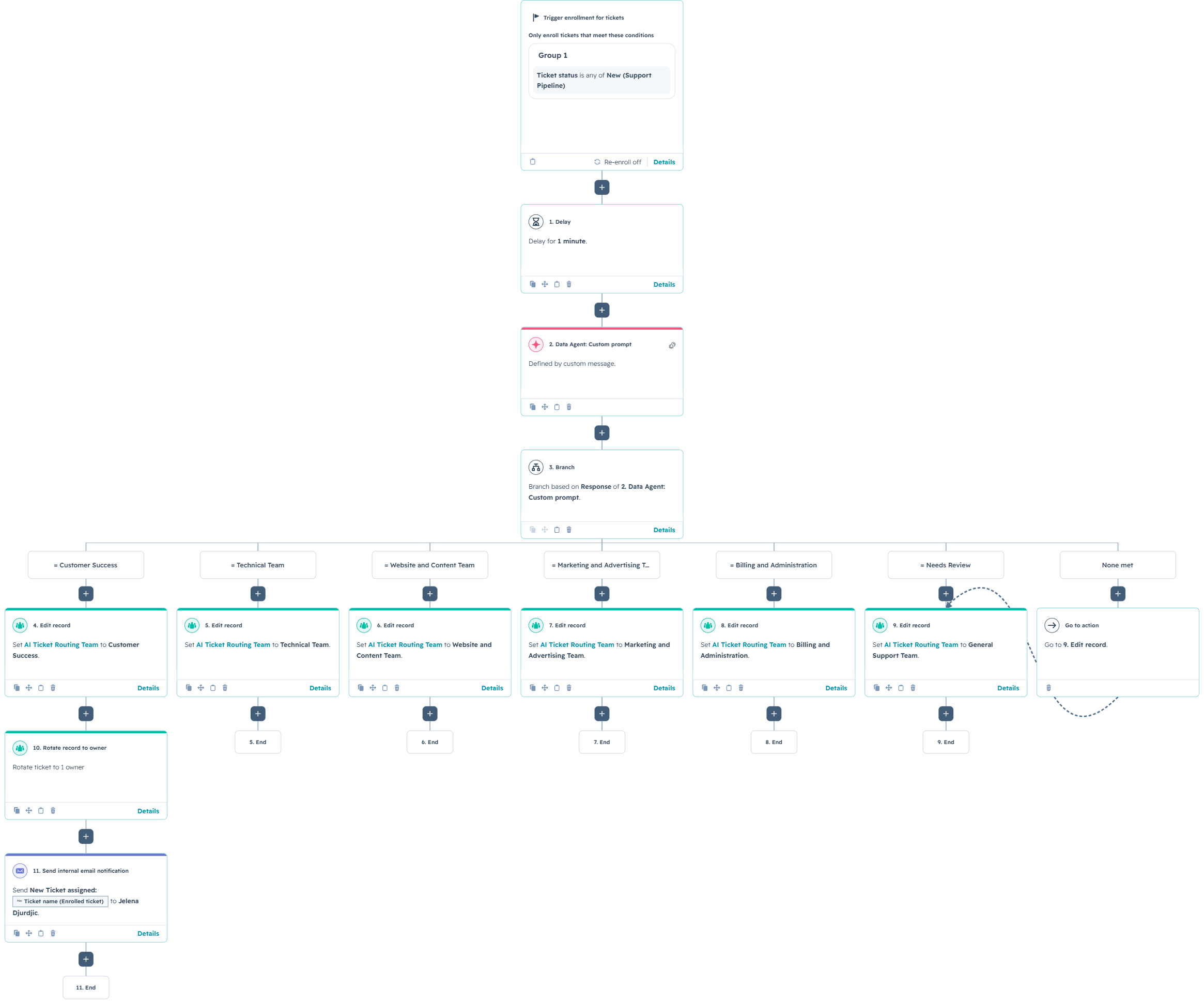
Our AI support routing example covers assigning requests to teams. Here, the focus is the review stage that should come before you trust a new classification to make that handoff.
Keep the suggestion separate from the approved value
Design the pilot around a small set of clearly named properties. These are proposed fields for your process, not a built-in HubSpot approval feature.
- AI suggested category: Store the model’s proposed classification here. Keep existing routing and reporting away from this field during the pilot.
- Reviewed category: Store the category a reviewer accepts or corrects. This is the value the downstream process should use.
- Review status: Distinguish Pending, Approved, Corrected, and Needs more information.
- Review note: Capture a short explanation when the reviewer changes the answer or needs more context.
Keep the original inquiry text available beside these fields. Reviewers should be able to compare the source with the suggestion without opening three systems. If the text changes after approval, treat it as a new review rather than letting an old approval cover a new answer.
Start with the native AI and workflow actions
HubSpot’s Data Agent documentation, checked on October 8, 2026, describes the Custom prompt action, defined outputs, branching on AI responses, and using those responses in record updates. It requires an eligible subscription, enabled AI settings, and HubSpot Credits.
Give the prompt the actual text and category definitions. The Custom prompt action does not browse the internet or automatically see the record’s entire history. Include the context it needs explicitly.
For a simple classification, define a short set of permitted categories, including Needs review. Explain how to handle conflicting or insufficient information. Do not ask the model to fill gaps with a plausible story. Your CRM already has enough fiction in the forecast.
Use native branches and Edit record actions to write suggestions and review status. Add custom code only when a specific requirement cannot be handled cleanly with those tools. Check that source and destination property types are compatible.
Make approval an actual step
For the pilot, send every suggestion to review. A valid category only means the output fits your allowed values. It does not prove the classification is correct.
Assign a named reviewer and a backup. Give them a record view containing the source text, suggested category, reviewed category, and review status. Define how quickly they should work through pending records based on the business process.
The reviewer should set the reviewed category first, then mark the review Approved or Corrected. Configure the downstream workflow to require both an accepted review status and a known reviewed category. Base its routing on the reviewed value.
A native Create task action can request that review. Use explicit enrollment conditions to avoid creating another task every time an unrelated property changes. Decide how revised source text resets the review before enabling re-enrollment.
Needs more information should have an owner and a next step, such as asking the customer a question. A queue nobody checks is just a parking lot with better labels.
Test disagreements, missing data, and failures
Build a small sample of real examples that your team is authorized to use. Have a knowledgeable colleague assign the expected category before looking at the AI output. Include easy cases and the awkward ones.
- Overlapping categories: A message mentions billing, but the work needed is technical investigation.
- Missing context: The request says “same problem again” without explaining the problem.
- Conflicting details: The subject and body point to different categories.
- Revised text: New information arrives after the first suggestion was reviewed.
- Unexpected output: The result is blank or does not match an allowed category.
HubSpot provides Test action for the Custom prompt step. Separately test the surrounding workflow with controlled records so you can check approval, corrections, task creation, and downstream updates.
Keep a missing output distinct from a genuine Needs review classification. HubSpot documents that insufficient credits can cause the action to fail and return null output. Monitor execution errors as well as the business review queue.
Expand only after the review tells you what works
Track how often reviewers accept a suggestion, what they correct, and how long records wait. Read the corrections by category. A single overall acceptance rate can hide a repeated mistake in the category your team cares about most.
Use those findings to improve definitions, source data, or the prompt. Retest the same examples after a change. Keep human review where a wrong decision could disrupt service or misrepresent a customer’s request.
Once the team has evidence that a narrow, low-impact category is reliable, decide whether it can move ahead automatically. Keep a review path for exceptions and continue checking a sample. Expand one decision at a time.
Want help building that first review step? Contact No Bounds Digital to review your HubSpot workflow, identify the native features that fit, and decide where human judgment should remain.